Set up Stripe integration
Collect online payments in your Let's Book checkout using Stripe Connect.
Connect Stripe
Open the Integrations page.
1. Create your Stripe account
New to Stripe? Create an account so you can accept cards, Apple Pay, Google Pay, and local methods like iDEAL.
- Sign up on the Stripe registration page
- Confirm your email and complete your business profile
2. Log in to Stripe
You approve the connection from Stripe.
- Open the Stripe dashboard and sign in
- Keep this tab open
3. Connect from Let's Book
- Go to the Integrations page
- Click Connect via Stripe
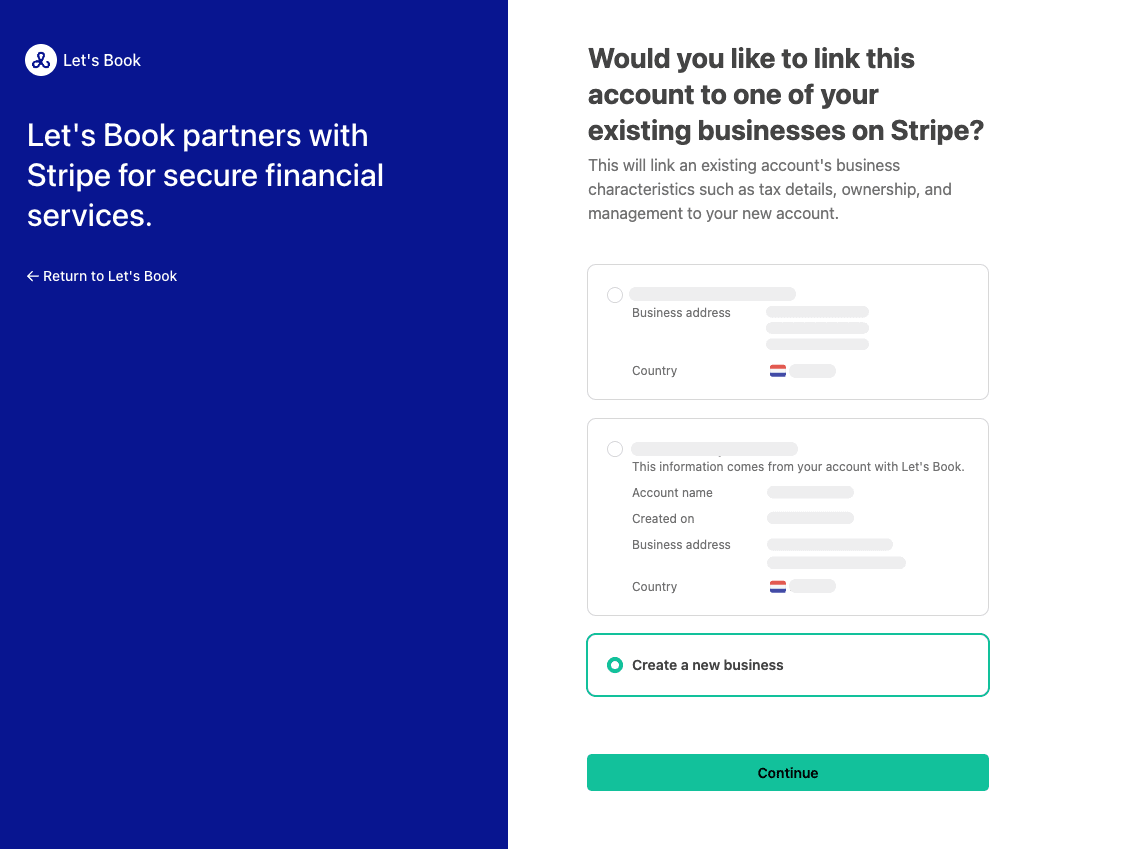
4. Approve the Stripe Connect screen
Authorize Let's Book in Stripe. This creates a secure connection using Stripe Connect
5. Return to Let's Book
After approval, Stripe sends you back to your dashboard.
- Stripe appears under Connected integrations
- New online bookings can use Stripe checkout
6. Complete onboarding if prompted
To enable live payouts, Stripe may ask for KYC details. You can usually take payments right away. Payouts start after onboarding is finished.
- If you see a verification banner, click it and finish onboarding
- Provide requested company documents and bank details
7. Verification and payouts
Payments can succeed while verification is pending. Payouts start once Stripe approves your account.
- Keep taking bookings
- Expect your first payout after checks complete
8. Go live
Switch from test to live when you are ready to charge real customers.
- Go to the Integrations page
- Select Stripe as the current payment provider and click Save
- Your checkout now charges real cards and supported local methods
Payment methods in checkout
Your checkout shows payment methods based on three things: your Stripe settings, the customer’s context, and your Let's Book configuration.
Customer context
Stripe tailors options to the customer country, currency, and device.
Examples
- Charge EUR for a Dutch customer. Expect iDEAL and cards.
- Charge USD from a US customer. Expect cards and wallets like Apple Pay or Google Pay if available.
If a method you expect is missing, check all three layers: Stripe payment method activation and capabilities, the customer’s country and currency, and the device you are on (Apple Pay only works on Apple devices).